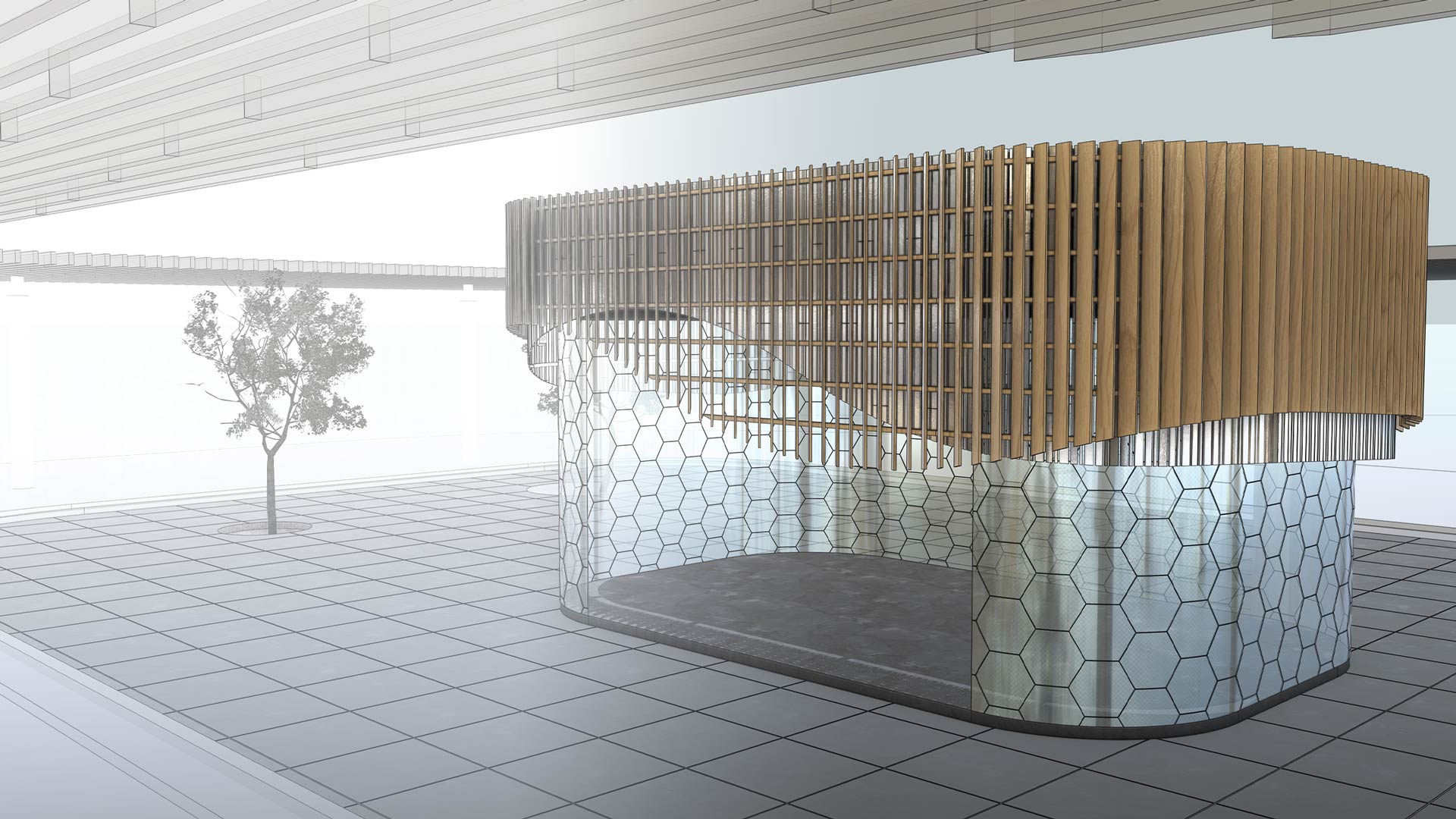
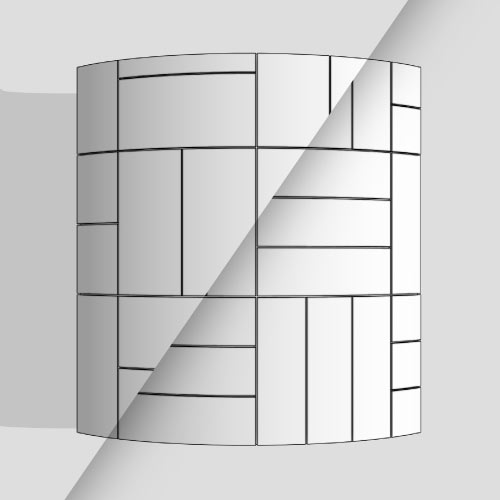
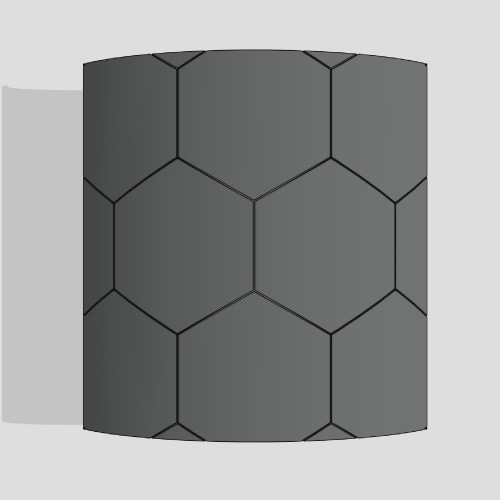
Layered timber panels and hexagonal pieces covering connected curved surfaces in a SketchUp model.
Real material layouts
for SketchUp
Generate parametric 3D material layouts across flat, curved and connected SketchUp geometry.
With real dimensions, thickness, cuts and corner joints.
Coming to SketchUp Extension Warehouse
One email at launch. No newsletter.

Change the layout, not the model.

Adjust piece size, spacing, pattern or layers and regenerate the result without rebuilding it piece by piece.

Flat and curved Work across connected flat and curved surfaces.
Stacked Layers Build layered material assemblies on the same surface.
Edges & corners Generate edge and corner conditions with the layout.
Workflow From surface to material layout in 3 steps
PatternsSwitch patterns in a click
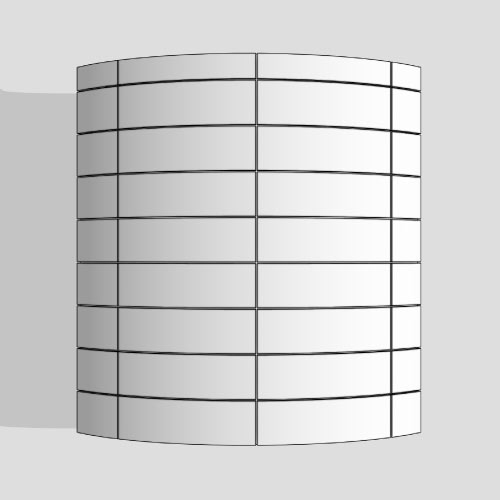
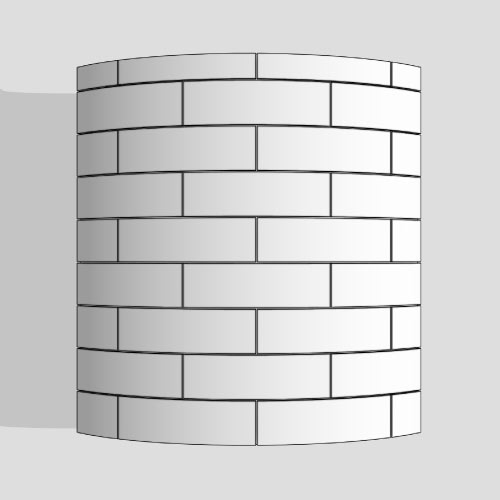
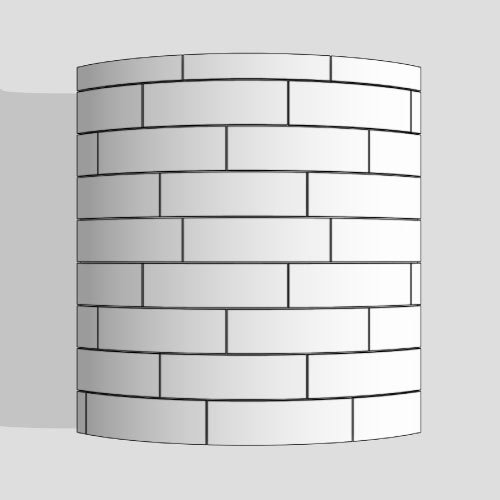
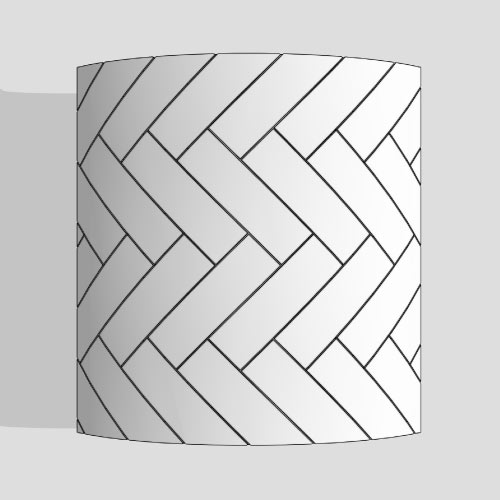
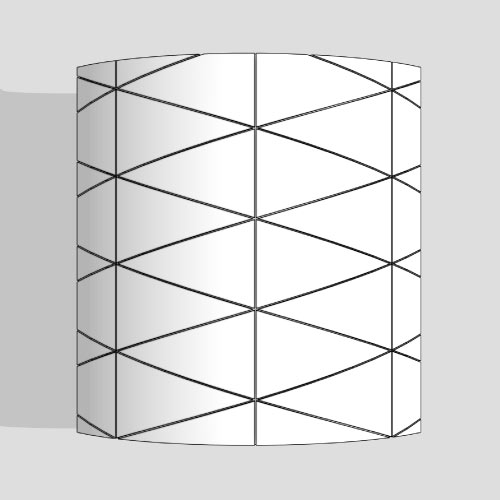
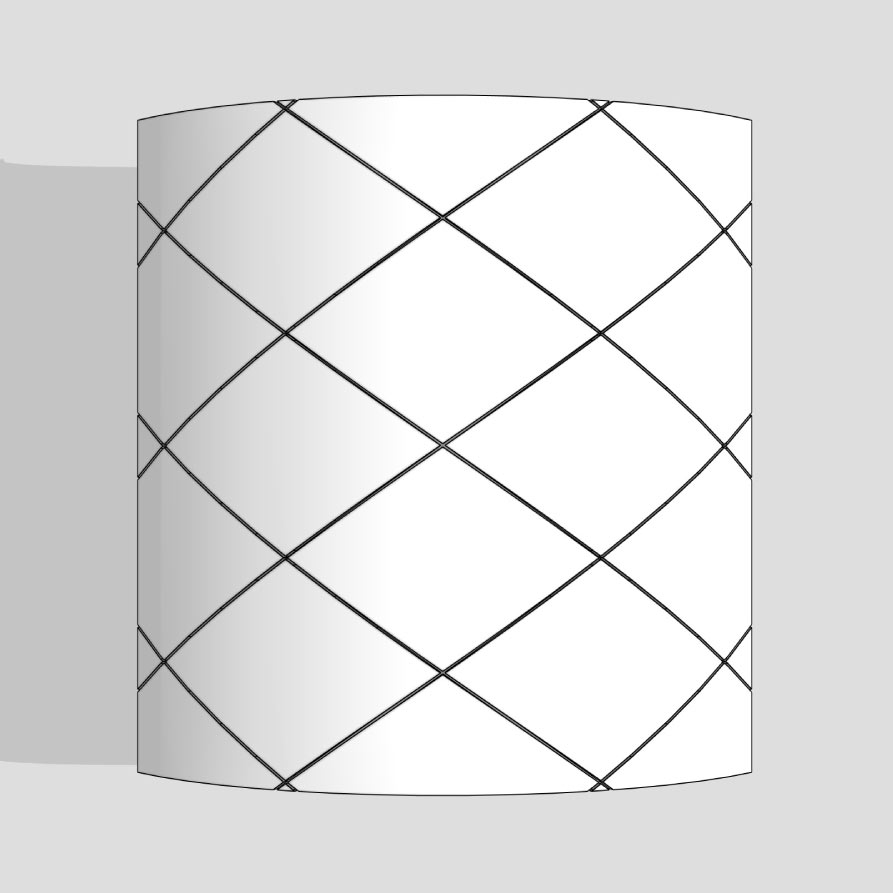
Switch between grids, staggered rows, herringbone, basketweave, and geometric patterns. Set consistent or repeating gaps, adjust the alignment, and regenerate the pieces and boundary cuts.
Grid pattern on a curved surface.
Grid
Fixed stagger pattern on a curved surface.
Fixed stagger
Free stagger pattern on a curved surface.
Free stagger
Herringbone board pattern on a curved surface.
Herringbone
Basketweave board patterns on a curved surface.
Basketweave
Alternating triangle pattern on a curved surface.
Alternating triangles
Diamond grid pattern on a curved surface.
Diamond grid
Hexagonal grid pattern on a curved surface.
Hex grid
Piece ShapesMore than rectangles
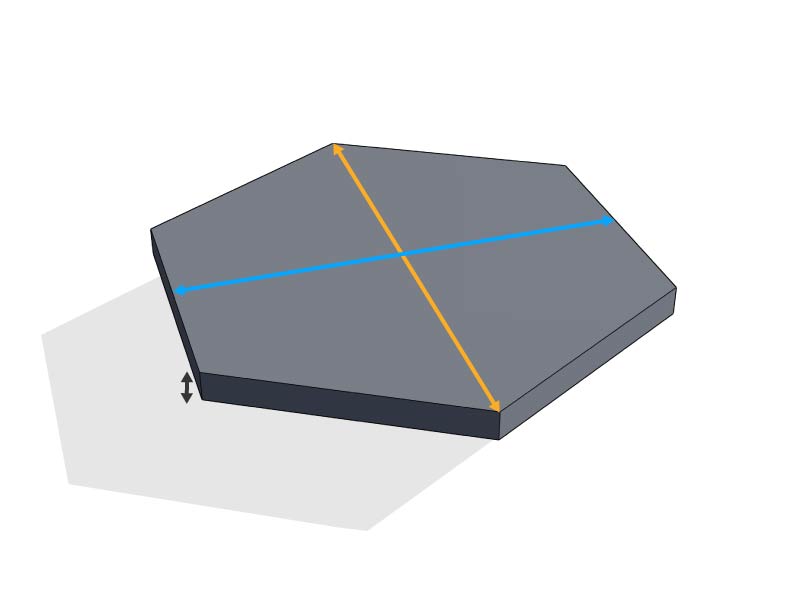
Set the size and thickness of each piece, from narrow boards to large panels. SurfaceLayout uses those dimensions to build the layout across the selected surface and automatically calculates the cuts needed at edges and openings.
Supported Piece Shapes
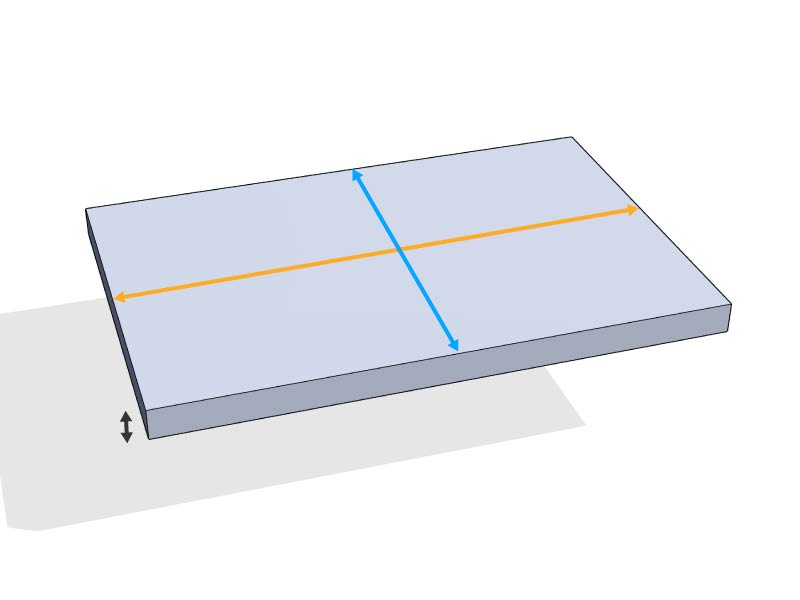
Rectangular piece showing length, width, and thickness.
Rectangle
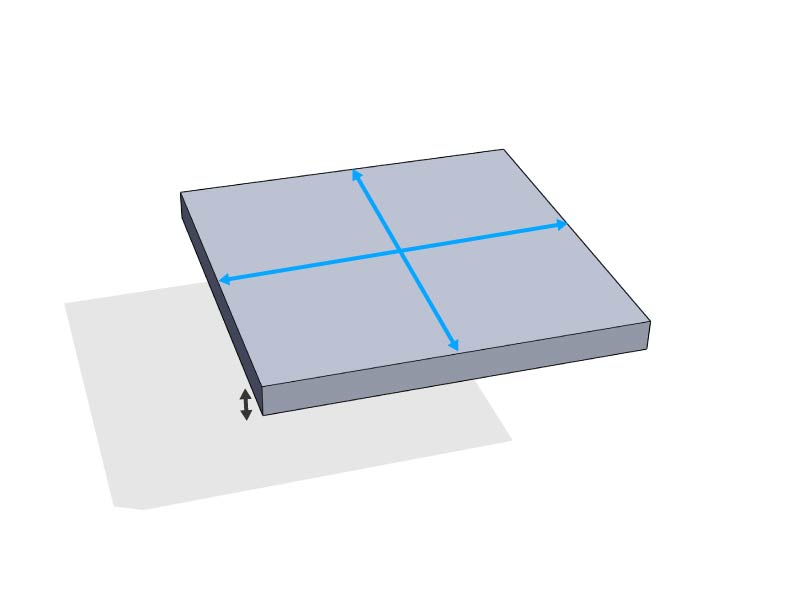
Square piece showing equal in-plane dimensions and thickness.
Square
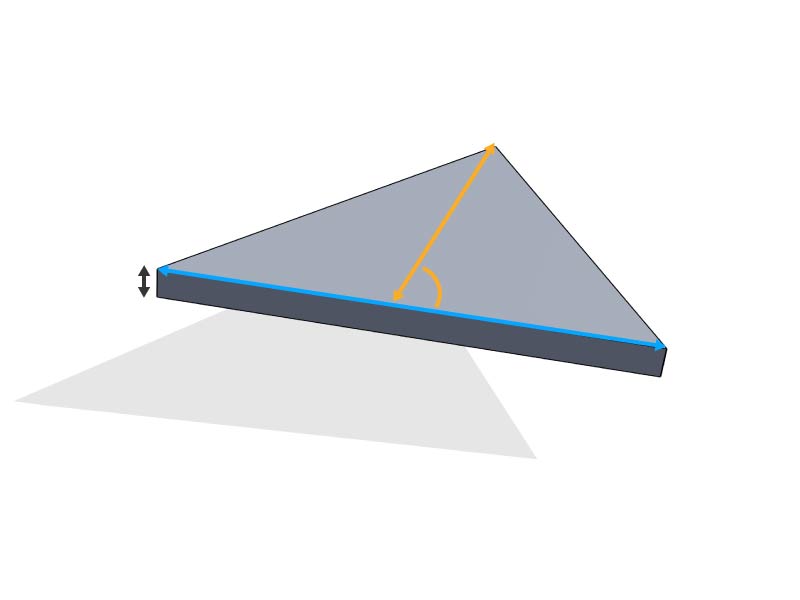
Triangular piece showing its base, perpendicular in-plane dimension, and thickness.
Triangle
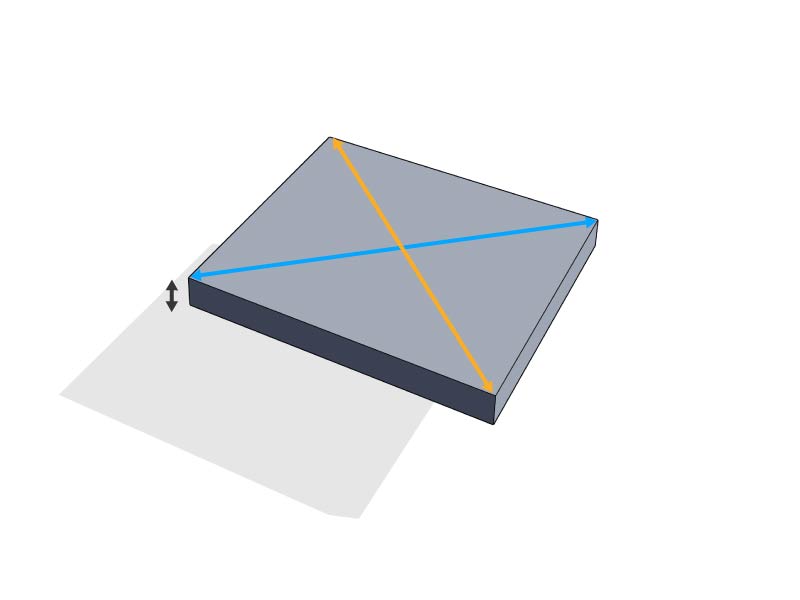
Diamond piece showing both diagonal dimensions and thickness.
Diamond
Hexagonal piece showing edge-to-edge and corner-to-corner dimensions and thickness.
Hex
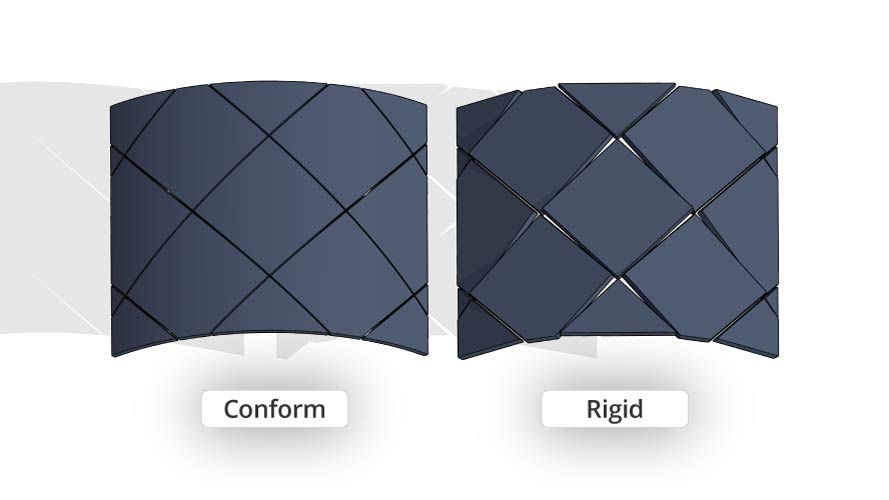
Conform and Rigid Conform follows the modeled surface, so pieces follow the shape of supported curves. Rigid keeps each piece flat. On a curved surface, the pieces can stand away from the source and leave gaps between neighboring pieces. Choose the surface fit for each layer. These settings control the generated geometry; they do not determine whether a physical material can bend.
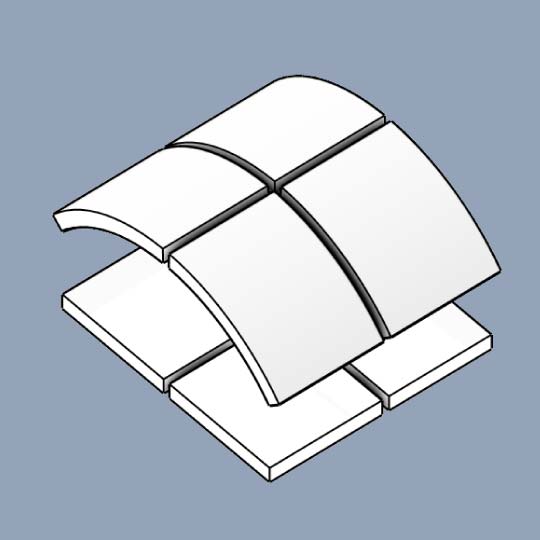
Diamond panels on a curved surface: Conform follows the curve on the left; Rigid keeps panels flat with visible gaps on the right.
LayersStack the layers behind the finish
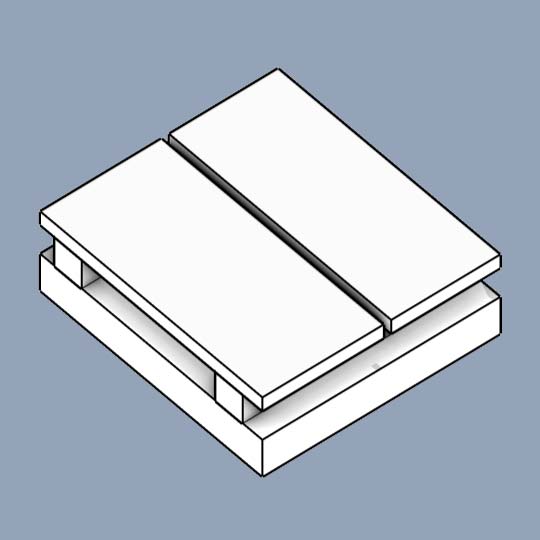
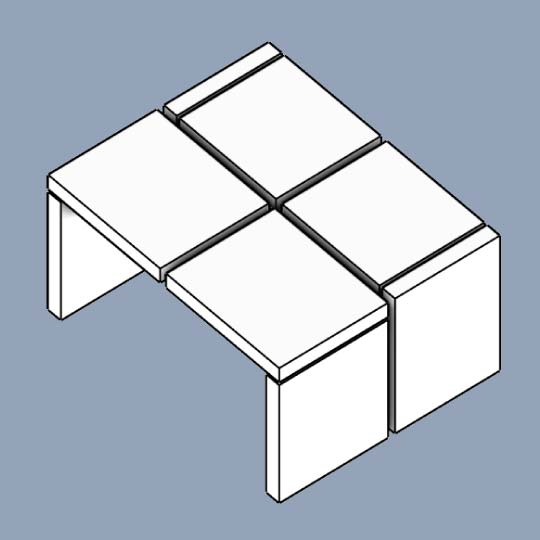
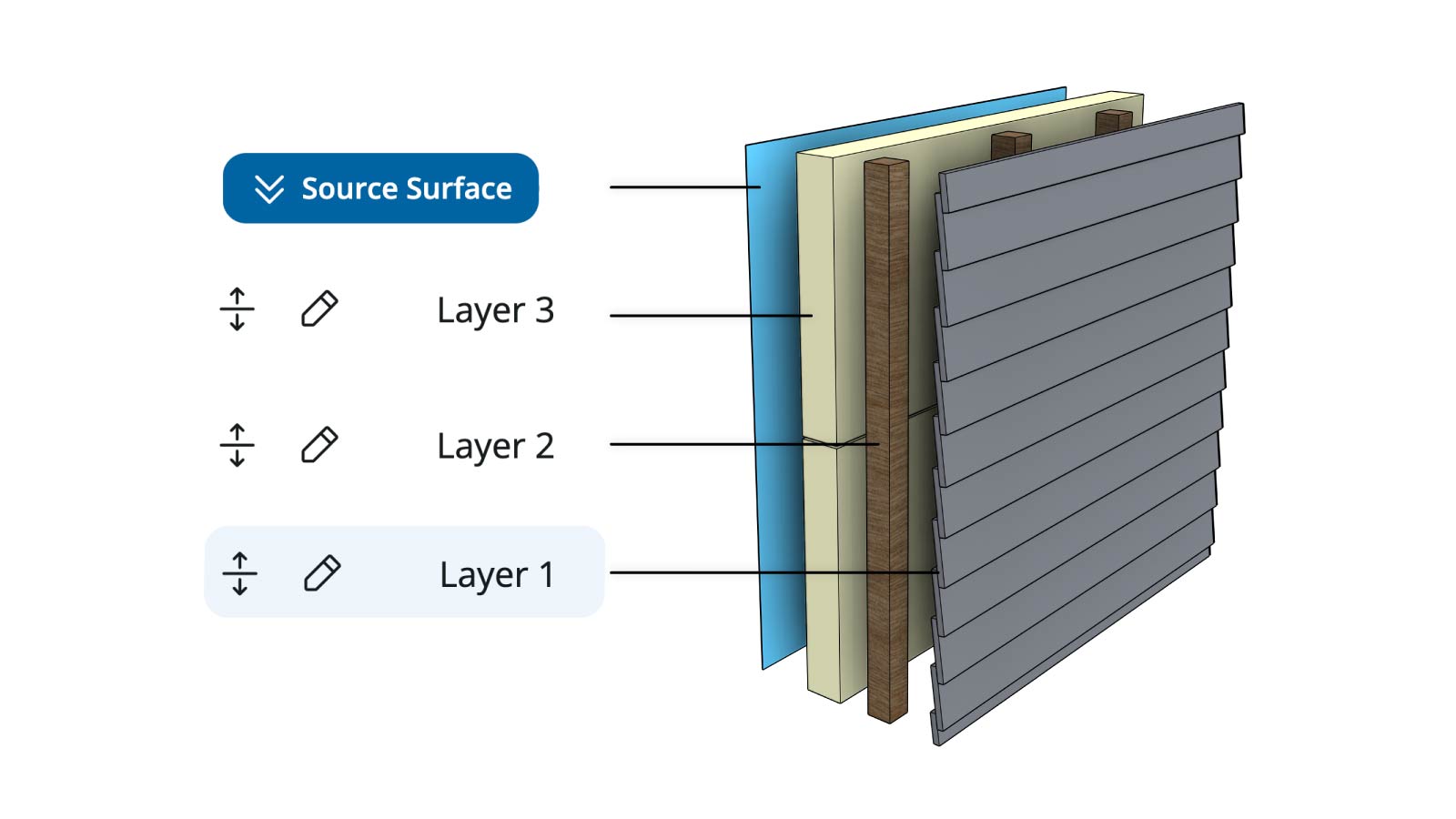
Build up to three material layers on the same surface, each with its own dimensions, thickness, pattern, and spacing. Offset joints or change the direction between layers to represent the assembly. Each layer remains a separate SketchUp group. For lapped finishes, overlapping rows are available on the outermost layer.
Curved source surface with three labelled layers of panels, vertical strips and horizontal boards.
SurfacesOne continuous layout
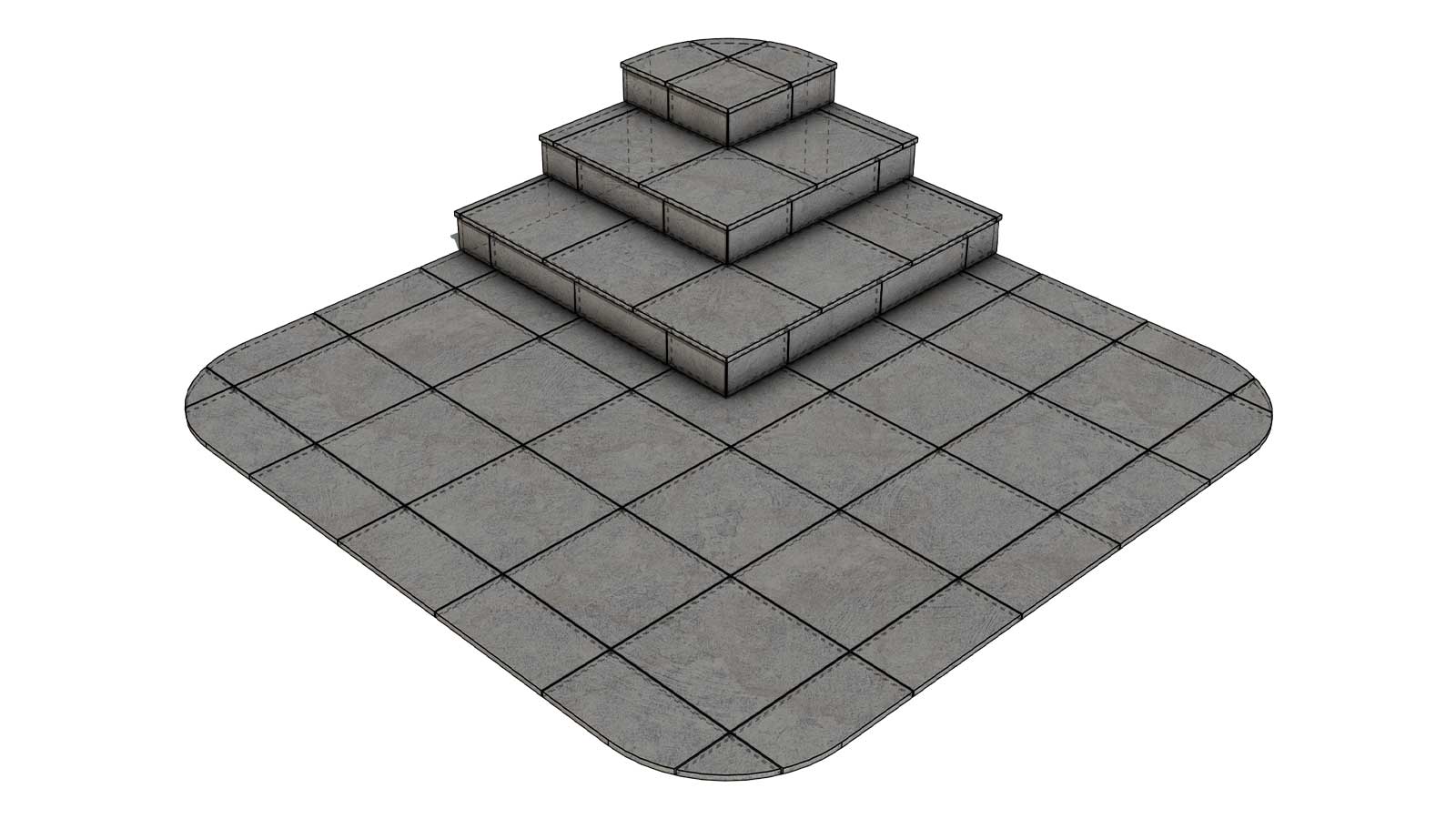
Select flat, curved and connected faces as one working area. SurfaceLayout unfolds the geometry into 2D, then applies the finished layout back to the SketchUp model.
Across corners and curves
Panel layouts continuing around connected flat and curved walls, with a doorway opening.
Patterns stay coordinated as the geometry changes direction, curves or passes around openings.
Match reality
Connected curved source faces in a SketchUp model with the Detect action highlighted.
SurfaceLayout unwraps connected geometry without stretching or deforming it. Dimensions, spacing and cuts stay true from the 2D layout back to the generated 3D model. Ready for production.
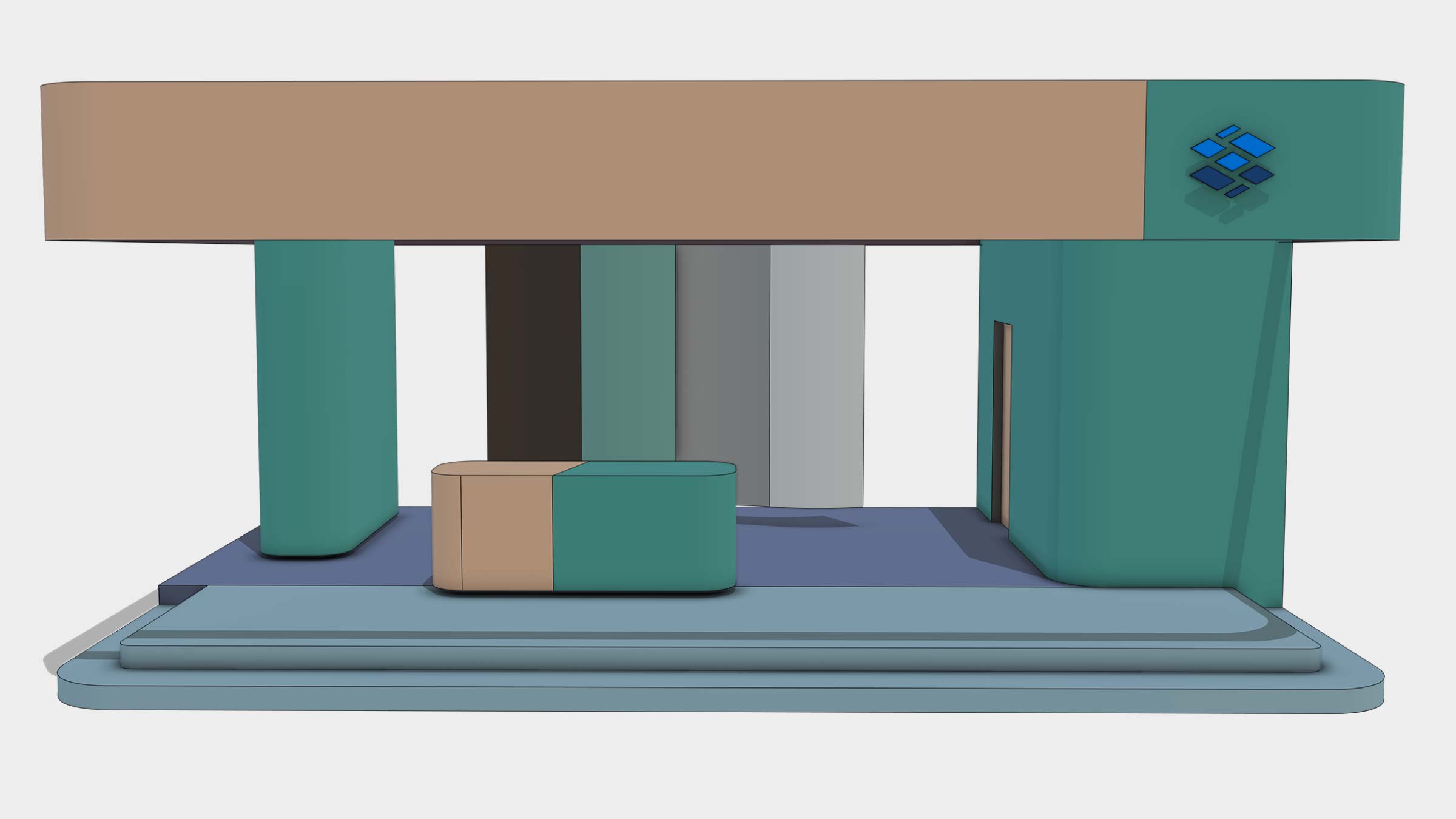
Source surfaces before generating a SurfaceLayout layout.
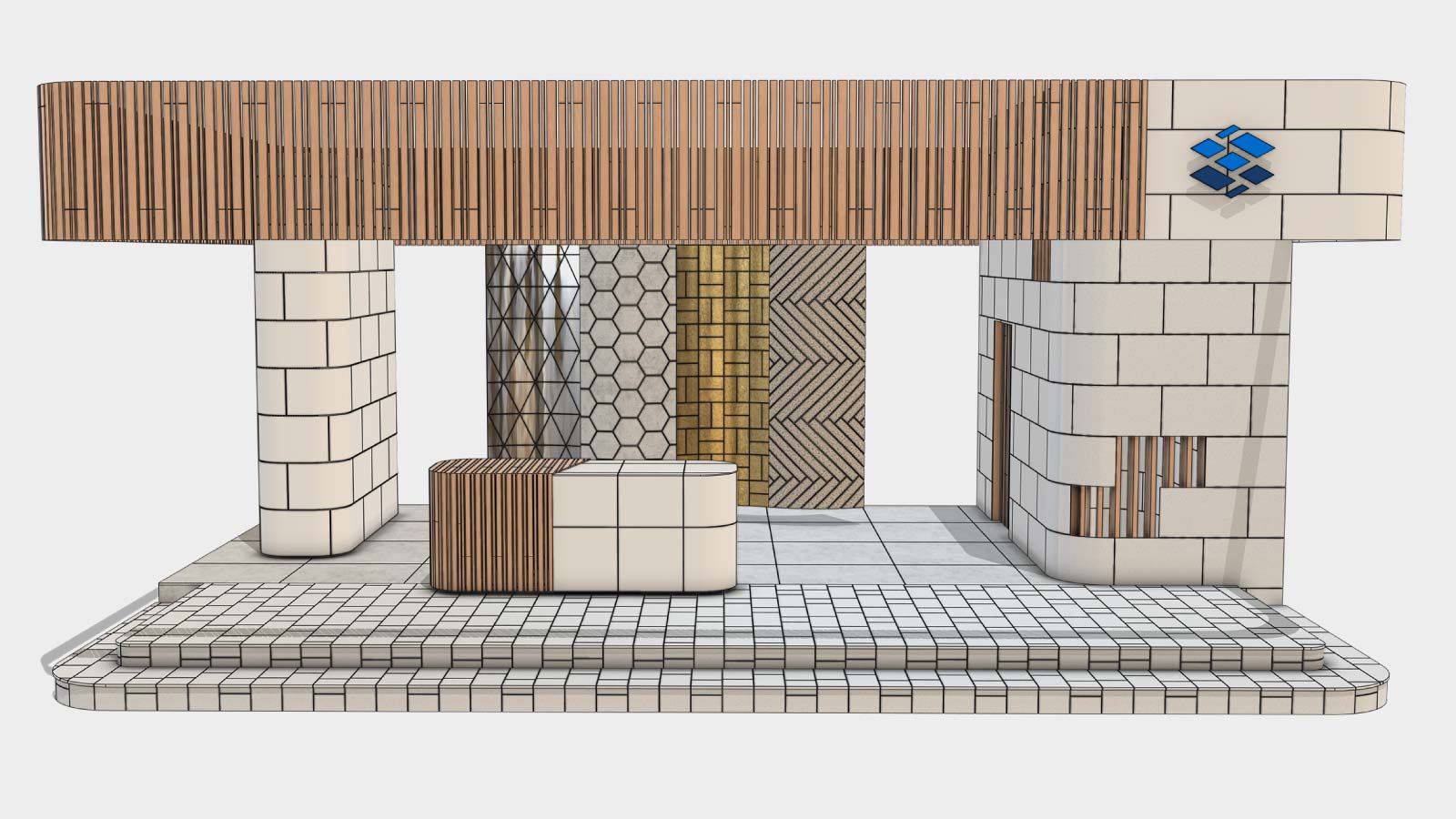
Generated SurfaceLayout layout on the same surfaces.
Edges & CornersDon’t stop at the edge
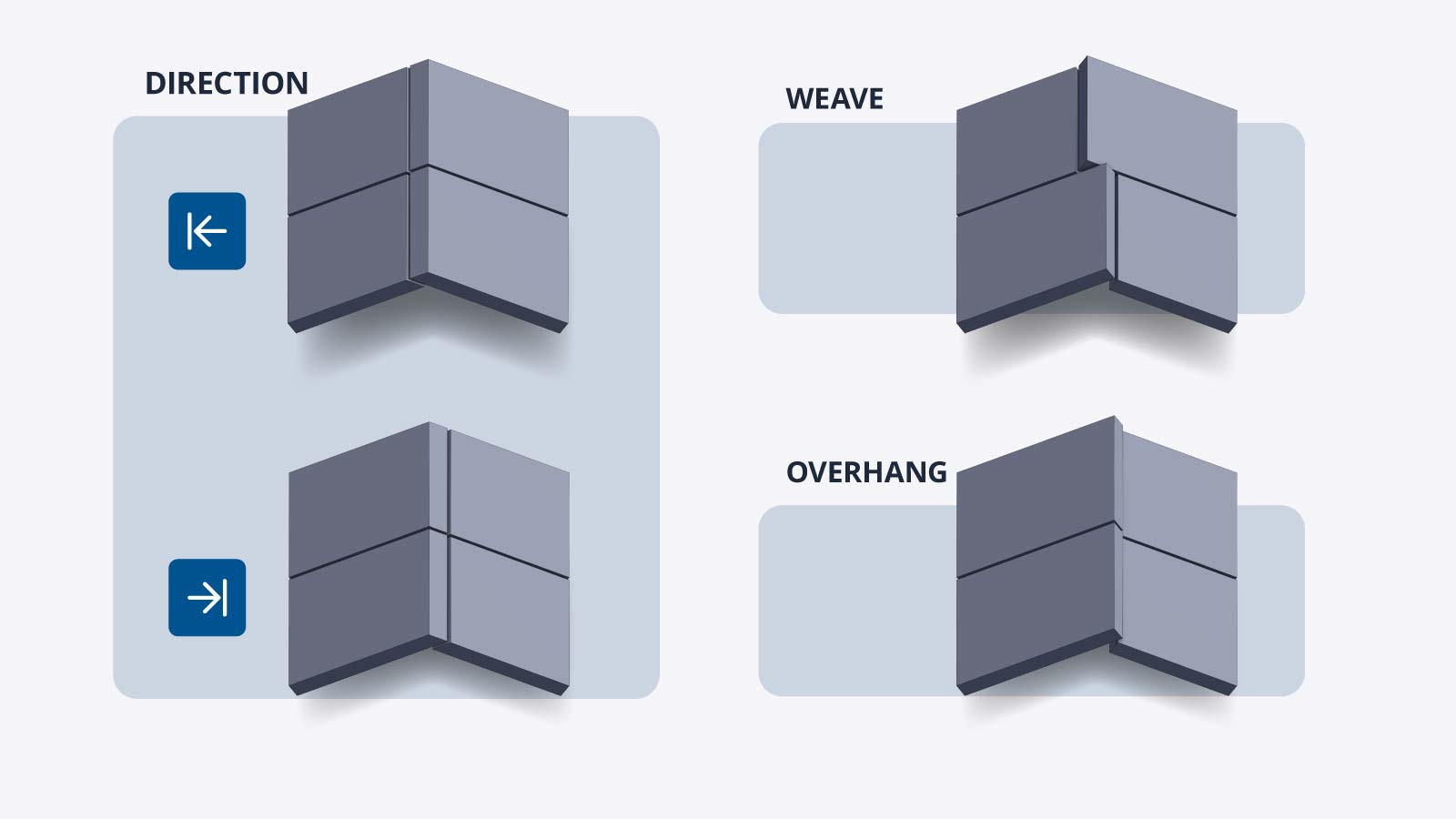
SurfaceLayout builds edge and corner conditions directly into the 3D layout, using the modeled angle, piece thickness and joint settings to shape how adjoining pieces meet.
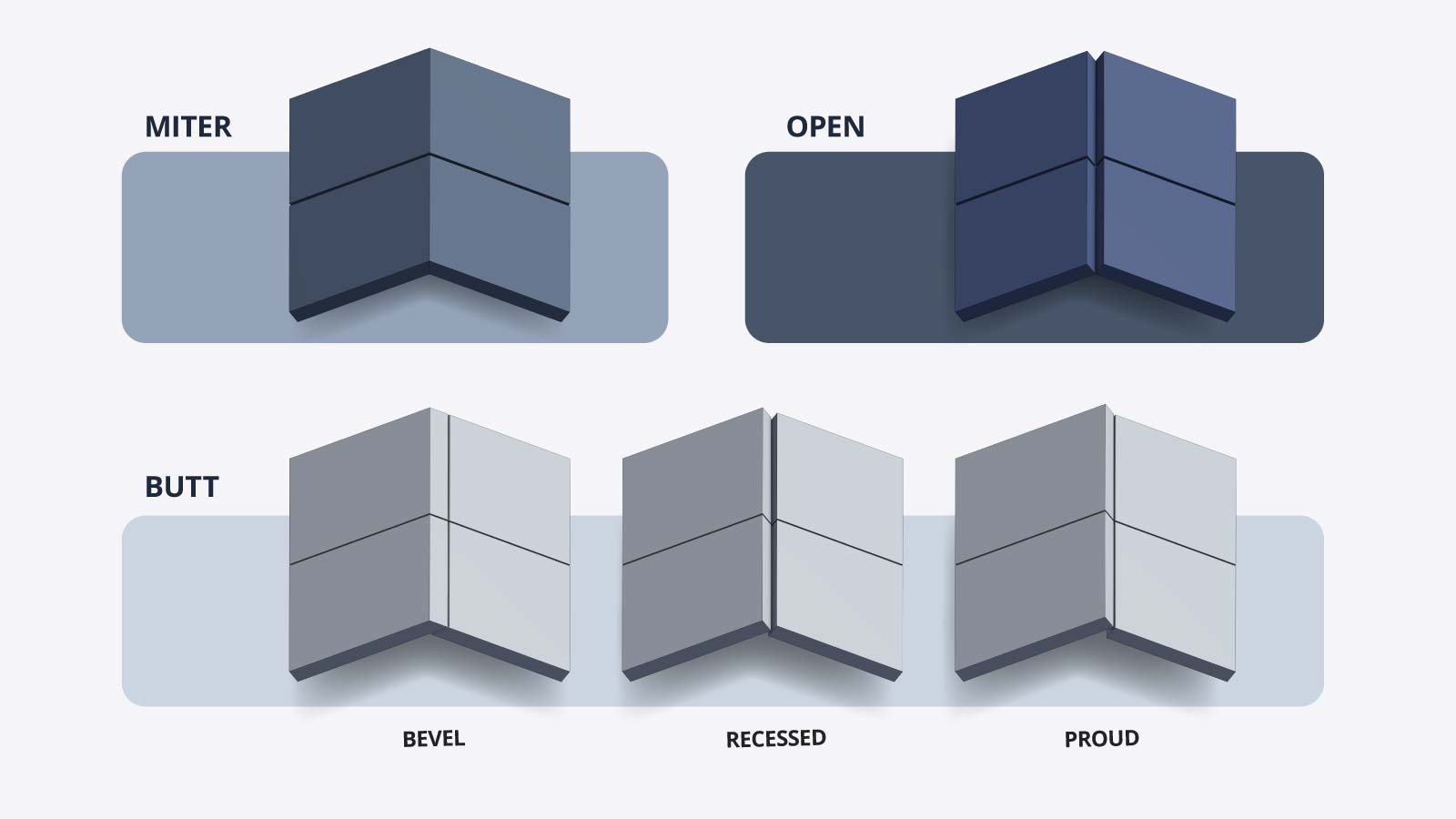
Butt, Open or Miter Choose how pieces meet at a corner and generate the required geometry as part of the layout.
SurfaceLayout edge joint examples: bevel, recessed, open, proud and miter.
Running-bond pieces with alternating covering sides at connected wall corners around a large opening.
Control every edge Add gaps, overhangs, bevels, recessed or proud edges, and use Weave to alternate the covering side between rows.
CutlistsKnow every cut
See quantities, finished dimensions and cut diagrams for every layer, including corner details and cut angles.
Find reusable offcuts, then export the complete cutlist as a PDF to print, share or take to site.
PARAMETRIC WORKFLOWIterate in seconds
Layouts stay parameter-driven. Change piece dimensions, spacing, pattern, position, rotation, layers or edge settings and regenerate the result instead of rebuilding it. Save piece, layer and complete layout setups as presets and reuse them across projects.
Follow the quick start
The quick start covers surface selection, layout setup, and 3D generation. Read the quick start
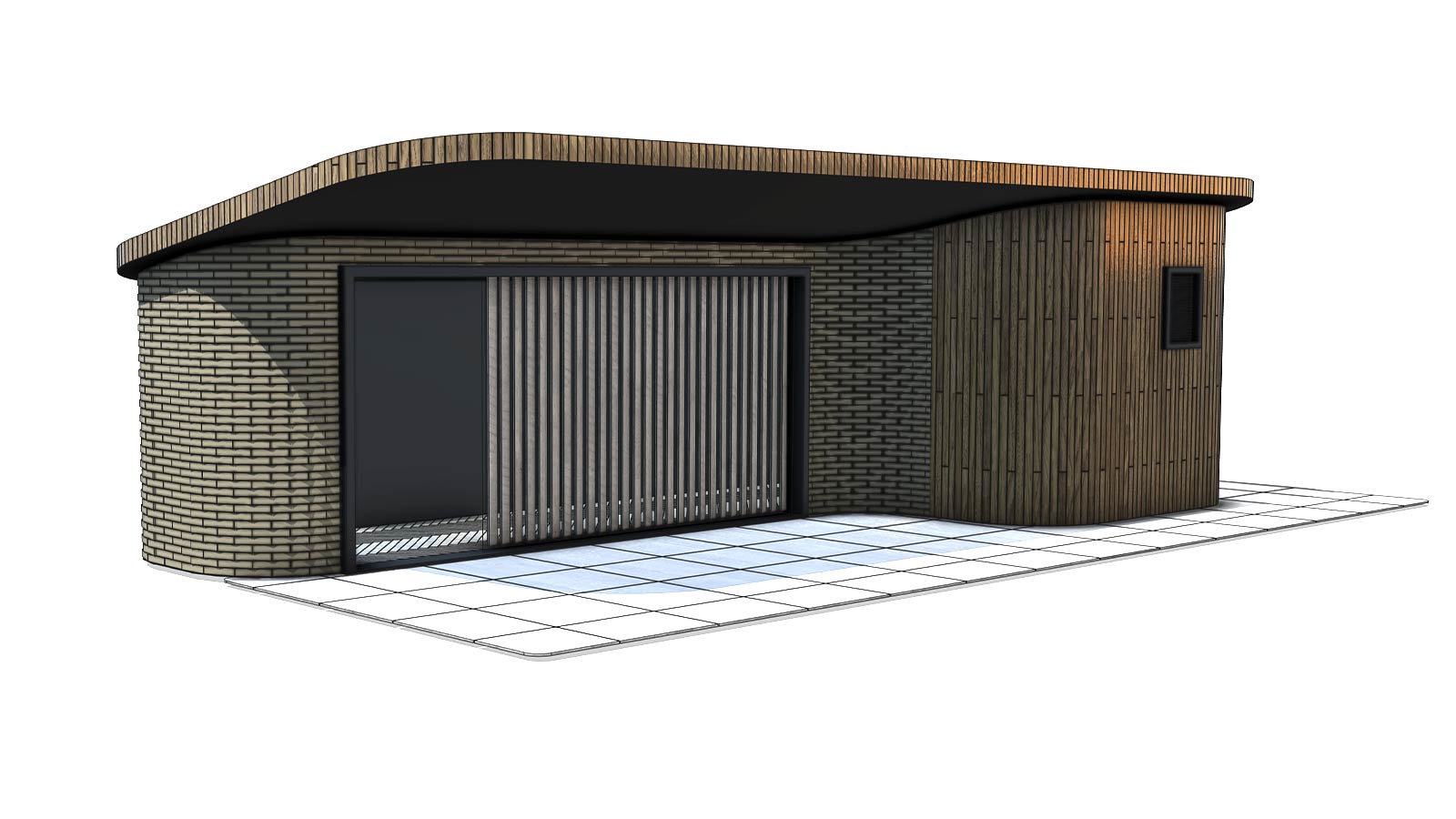
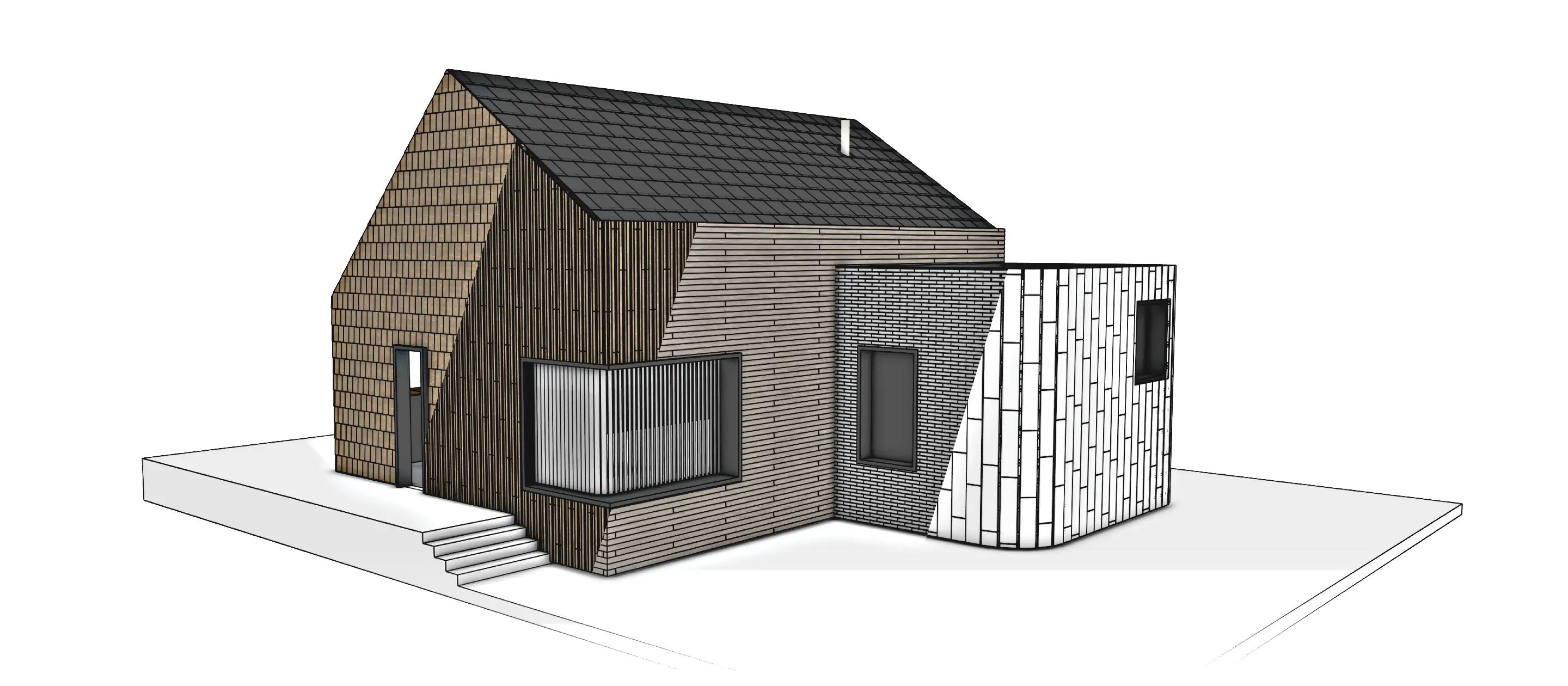
SurfaceLayout example showing boards and panels arranged across connected walls and roof surfaces with openings.
FAQFrequently asked questions
What geometry can I start with? Start with selected faces in the main SketchUp model. Flat surfaces and supported curved or connected geometry are suitable. Detection does not read inside groups or components. Does it work on curved surfaces? Yes, on supported curves. Pieces can follow the modeled surface or remain flat. Flat panels may leave gaps, and some surface layouts are approximate. Review the layout warnings before using the result. What does SurfaceLayout add to my model? Individual 3D pieces, organized into a separate group for each layer. You can select and hide layers independently with SketchUp’s own tools. Can I change a layout later? Yes. Reopen the saved layout, revise its settings, and generate the updated pieces. The source geometry must remain available. Regenerating replaces the generated pieces, including manual edits inside them. What can I export? A PDF cutlist for each layer, with quantities, dimensions, cut diagrams, and applicable joint details. Excluded pieces are omitted. The diagrams are fitted to the page, not full-size cutting templates. Does it include nesting or CNC export? No. SurfaceLayout identifies compatible offcuts for reuse, but it is not a general nesting system. CNC export is not included.